10 Easy WordPress Website Maintenance Tips
Mastering wordpress website maintenance is the real secret to keeping your Google rankings high and your visitors happy.
When your site is neglected, search engines notice. Slow load times and security flaws will actively drag down your organic traffic, whether people are searching on Google or using AI tools like Perplexity.
What does good maintenance actually look like? It’s a proactive routine. It means running off-site backups, testing updates on a staging site, keeping your database lean, and blocking security threats at the server level.
Here is a straightforward, jargon-free blueprint to keep your site fast, secure, and ranking well.
Table of Contents
- Run Reliable Off-Site Backups
- Update Safely Using a Staging Site
- Delete What You Don’t Use
- Deep-Clean Your Database
- Find and Fix Broken Links
- Optimize Your Images and Media
- Lock Down Your Security
- Stop Comment Spam Quietly
- Track Your Real-World Speed
- Test Your Forms and Buttons
The Ultimate WordPress Website Maintenance Checklist
1. Run Reliable Off-Site Backups
Never rely solely on your web host’s daily backups. If their server crashes, your backup might vanish right along with your site.
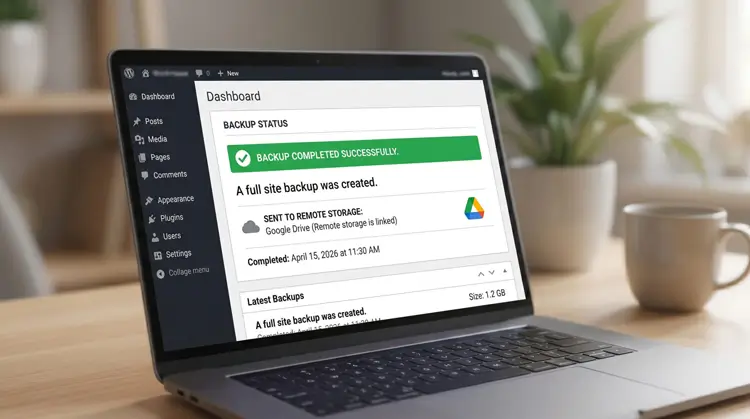
- Store them elsewhere: Send your backup files directly to Google Drive, Dropbox, or Amazon S3 using tools like UpdraftPlus.
- Test your safety net: A backup is useless if it won’t restore. Do a practice run every month to make sure your files actually work when an emergency hits.
2. Update Safely Using a Staging Site
Keeping your core, themes, and plugins updated is the best way to patch security holes. But hitting “update all” on your live site is a gamble.
- Use a staging environment: If you build custom layouts using Kadence, Elementor, or rely heavily on Custom Post Types, a minor update can unexpectedly break your design.
- Test first: Push updates to a hidden staging site first, check that everything looks right, and then apply them to your live site.
3. Delete What You Don’t Use
Every installed plugin—even the deactivated ones—is a potential back door for hackers.
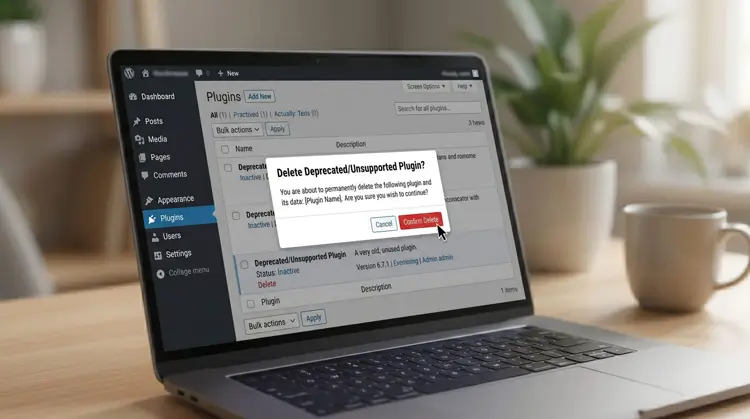
- Cut the dead weight: Delete any themes or plugins you are no longer actively using.
- Speed up your site: Leftover files add unnecessary code that your server still has to process. Keeping a clean house through routine wordpress website maintenance directly improves your load times and shrinks your attack surface.
4. Deep-Clean Your Database
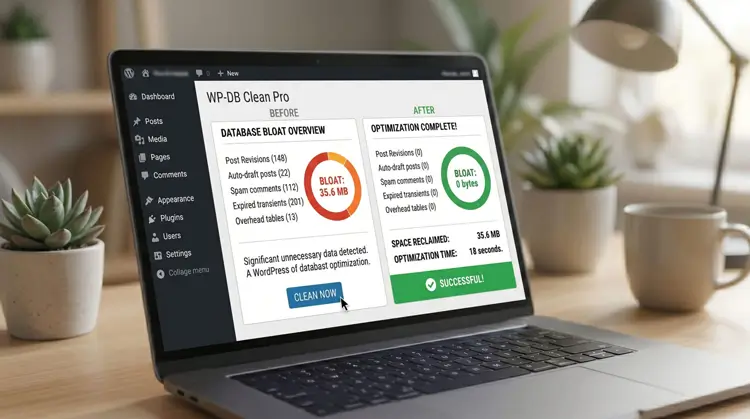
Over time, your WordPress database becomes a hoarding ground for hidden junk, like post revisions, trashed items, and expired temporary files.
- Clear the bloat: This hidden data slows down how fast your server can answer a browser’s request.
- Automate the cleanup: A critical step in wordpress website maintenance is limiting how many post revisions WordPress saves, and using an optimization tool to scrub your database tables regularly so the backend stays lightning fast.
5. Find and Fix Broken Links
Clicking a link and hitting a “404 Not Found” page is frustrating for readers and looks terrible to search engines.
- Ditch the heavy plugins: Don’t use WordPress plugins to check for broken links. They force your server to work overtime and slow your site to a crawl.
- Use outside tools: Use free tools like Google Search Console to spot dead links, then easily point them to the right place using a simple 301 redirect.
6. Optimize Your Images and Media
Massive image and video files are the number one cause of slow websites. If you regularly embed long-form YouTube content or heavy graphics, managing how they load is a non-negotiable part of wordpress website maintenance.
- Upgrade your formats: Stop using heavy JPEGs. Switch to modern formats like WebP or AVIF.

- Compress and delay: Set up automatic compression for new uploads, and turn on “lazy loading” so images and videos only load when the user actually scrolls down to see them.
7. Lock Down Your Security
Hackers use automated bots to guess passwords thousands of times a minute.
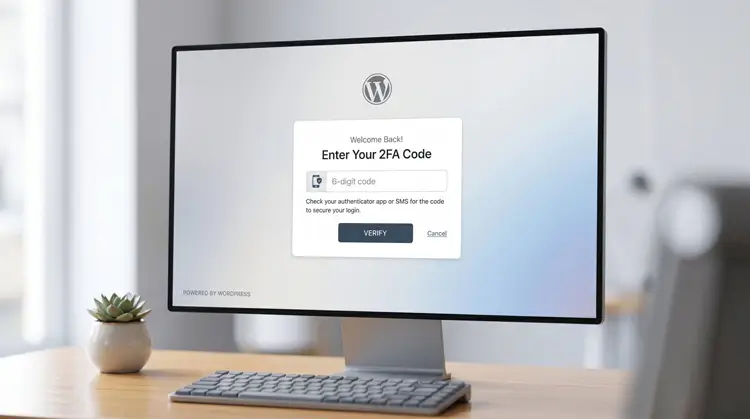
- Beef up logins: Force every user with dashboard access to use a complex password and enable Two-Factor Authentication (2FA).
- Block them at the door: Use a server-level firewall (like Cloudflare) or a robust security plugin to block malicious traffic before it ever reaches your login page.
8. Stop Comment Spam Quietly
A flooded spam folder inflates your database size. Worse, if a malicious link makes it into your live comments, Google might flag your site.
- Skip the annoying puzzles: Traditional CAPTCHAs frustrate your real readers.
- Use invisible traps: Rely on modern tools like Cloudflare Turnstile or simple “honeypot” fields that trap bots automatically without bothering your human visitors.
9. Track Your Real-World Speed
A fast site keeps visitors engaged. Google explicitly rewards sites that pass their Core Web Vitals test.
- Check the right metrics: To verify your wordpress website maintenance efforts are actually working, use Google PageSpeed Insights once a month. Don’t just look at the overall score; pay attention to how quickly the main content loads and whether the page jumps around while loading.
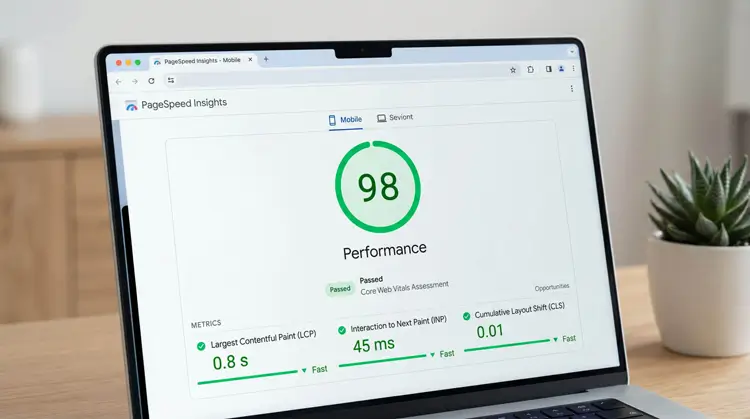
- Aim for under two seconds: Every fraction of a second you shave off your load time increases the chances a visitor will stick around and read your content.
10. Test Your Forms and Buttons
Background updates can sometimes cause minor JavaScript glitches that break your site’s interactive elements without you realizing it.
- Do a manual walkthrough: Once a month, open an Incognito window and test your site like a customer.
- Protect your leads: Click your menu buttons, fill out your contact forms, and test your checkout process. If you are running Google Ads to a service landing page, a broken form means you are literally paying for leads you can’t capture.
Wrapping Up
Consistent wordpress website maintenance isn’t just a technical chore; it is the foundation of your digital strategy. By taking a few hours each month to back up your data, update safely, and monitor your speed, you guarantee a smooth experience for your audience and protect your hard-earned SEO rankings.