
7 Easy Fixes: How to Speed Up WordPress Site
If you are trying to figure out exactly how to speed up wordpress site loading times, you are in the right spot.
Speed isn’t just a nice-to-have feature anymore. It is the absolute backbone of modern SEO.
Here is the hard truth: if your page takes three seconds to load, 32% of your visitors will hit the back button. Push that to five seconds, and you lose 90% of your audience before they even see your content.
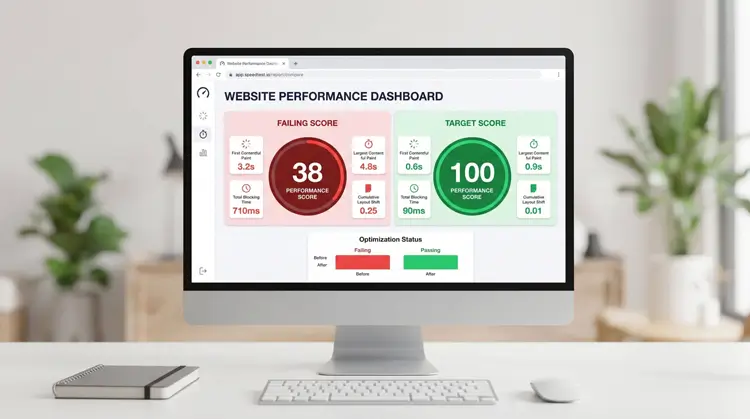
Google’s Core Web Vitals—like Largest Contentful Paint (LCP) and Interaction to Next Paint (INP)—are strict ranking factors. Plus, AI search tools prioritize fast, reliable websites when they look for sources to cite.
Fast loading times prove you run a trustworthy, professional site.
If you are ready to stop losing traffic and start dominating search results, follow this straightforward roadmap.
Table of Contents
- Switch to Next-Gen Images
- Set Up Smart Caching
- Streamline Your Theme and Builder
- Deep Clean Your Database
- Minify Your Code
- Connect to a Global CDN
- Audit Your Plugins
The Master Guide: How to Speed Up WordPress Site Performance
1. Switch to Next-Gen Images
Huge media files are the most common reason websites fail their speed tests. The oversized featured image loading first on your homepage is likely choking your site’s load speed.
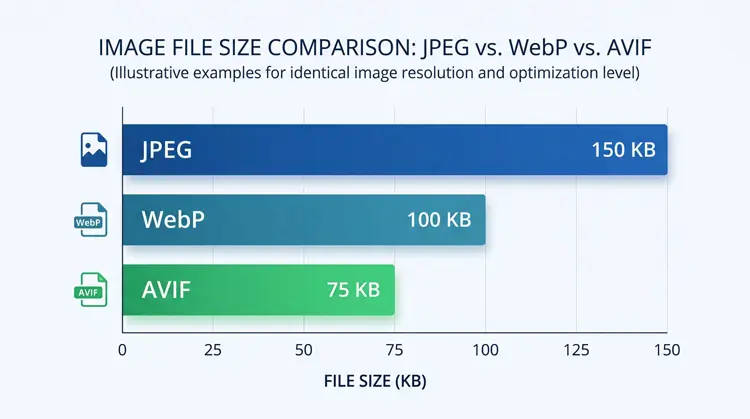
- Ditch the JPEGs: WebP is good, but AVIF is better. AVIF files are roughly 50% smaller than JPEGs and completely retain their high quality.
- Fix Your Lazy Loading: Lazy loading is great for images at the bottom of your page. But you must exclude your top-of-page images (like logos and hero banners) so they load instantly.
- Scale for Mobile: Don’t force a phone to load a massive 4000-pixel desktop image. Use responsive resizing so the server only sends the exact size the device needs.
2. Set Up Smart Caching
If you are researching how to speed up wordpress site delivery, setting up smart caching is mandatory because your server has to do a lot of heavy lifting for every new visitor. Caching does the work ahead of time, saving a snapshot of your page to show visitors instantly.
- Page Caching: This is your baseline. Grab a premium tool like WP Rocket, or use LiteSpeed Cache if your host supports it.
- Object Caching: Most beginners skip this, but it is a game-changer. Ask your host to turn on Redis or Memcached. It remembers your database queries, which makes your WordPress admin dashboard incredibly fast.
- Turn on Preloading: This tells your caching tool to build the snapshot before a visitor arrives, ensuring nobody ever gets stuck waiting for a fresh load.
3. Streamline Your Theme and Builder
Old, bloated themes and clunky page builders generate way too much background code. The more code the browser has to read, the slower the page gets.
- Use a Modern Framework: Build your site on a lightweight, performance-first theme like the Kadence framework, GeneratePress, or Astra.
- Be Smart with Builders: If you use the free version of Elementor, you have to watch your code bloat. Avoid deeply nested layouts.
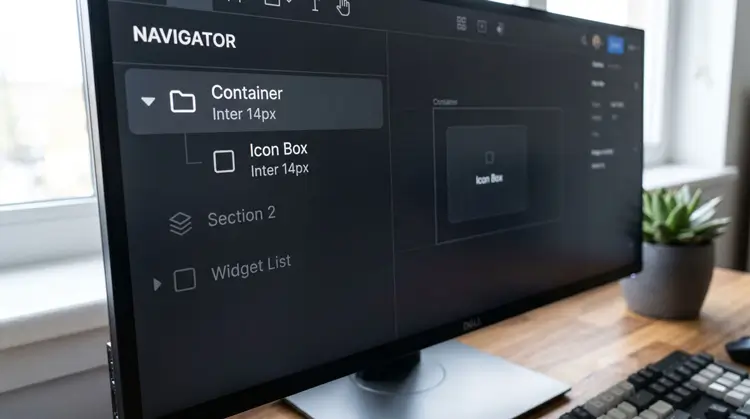
- The Container Trick: Instead of stacking multiple widgets inside endless columns, rethink it. Use a single Icon Box widget inside a non-repeating Container. You get the exact same visual design, but it cuts your underlying HTML nodes in half.
4. Deep Clean Your Database
A massive part of understanding how to speed up wordpress site infrastructure involves database maintenance. Over time, your database fills up with digital junk that slows everything down.
- Automate the Cleanup: Don’t do this manually. Install WP-Optimize and set it to automatically delete spam and old trash every week.“monthly maintenance routines“.
- Cap Your Revisions: By default, WordPress saves a new copy of your post every time you hit “Save Draft.” Stop this endless bloat by adding this exact line to your wp-config.php file: define(‘WP_POST_REVISIONS’, 5);
- Check for Leftovers: Even when you delete a plugin, it often leaves data behind. Advanced users should routinely clear out this “autoloaded” junk to free up server memory.
5. Minify Your Code
Browsers have to read every single line of your HTML, CSS, and JavaScript. If those files are huge, the browser pauses rendering until they finish downloading.
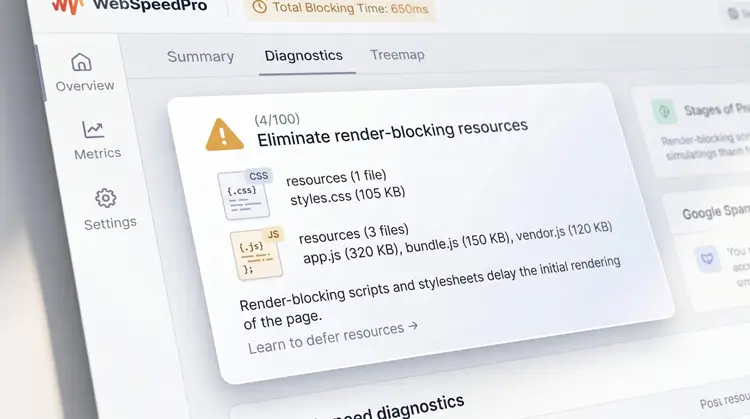
- Shrink the Files: Minification strips out all the useless white space, line breaks, and developer notes from your code, making the files incredibly small.
- Load the Top First: Generate “Critical Path CSS.” This ensures the styles for the very top of your webpage load instantly, while the rest loads quietly in the background.
- Delay the Unimportant Stuff: Things like analytics codes or chat widgets shouldn’t load first. Use a tool like Autoptimize to push those scripts to the bottom of the line.
6. Connect to a Global CDN
Physical distance matters greatly when figuring out how to speed up wordpress site loading globally. If your server is in New York, a visitor from London is going to experience a delay.
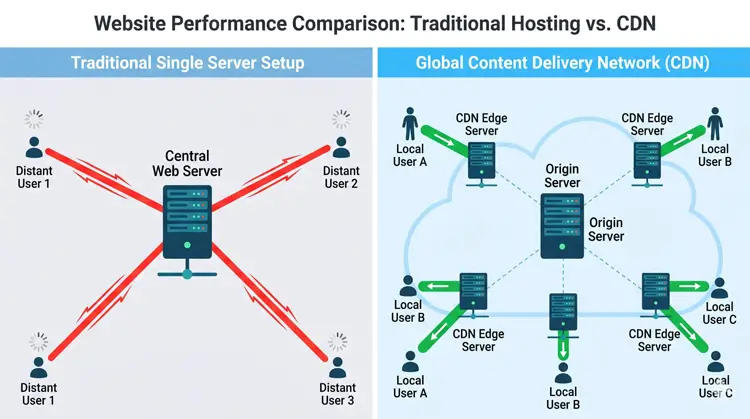
- Use the Edge: A Content Delivery Network (CDN) fixes this. It stores copies of your images and code on servers all over the globe. Visitors get the files from the server closest to them.
- Try Cloudflare: Cloudflare is the industry standard and has a great free plan. If you want to take it further, look into their Automatic Platform Optimization (APO) add-on, which caches your entire HTML page globally.
7. Audit Your Plugins When Learning How to Speed Up WordPress Site Performance
Plugin hoarding will kill your website speed. Every active plugin adds extra weight to your site.
- Find the Culprits: Install a free diagnostic plugin called Query Monitor. It will tell you exactly which plugins are eating up your memory and slowing down your site.
- Delete the Junk: Deactivate and fully delete anything you don’t absolutely need.
- Consolidate: If you have three different plugins doing tiny jobs (like changing a login URL or adding a tracking snippet), delete them. You can usually do those tasks with simple code snippets instead.
Final Steps
Testing your progress is the last step in figuring out how to speed up wordpress site performance.
Skip the outdated speed tests that only look at total load time. Instead, run your site through Google PageSpeed Insights and GTmetrix to see your actual Core Web Vitals.
Make this a monthly habit, and your site will stay lightning-fast as it grows.